
Toads is my first recommendation for a Mac product demo that needs recording, editing, captions, and a finished export in one app. Screen Studio is another option for styled demonstrations. Loom fits link-based explanations and feedback. Apple’s built-in tools cover a basic recording. Choose the best Mac screen recorder from the video you need to deliver.
Key takeaways
- Start with one viewer task. A useful product demo shows a clear action and its result.
- Choose the delivery format early. A downloadable movie and a hosted feedback link serve different workflows.
- Review the editing tools. Trimming, readable captions, and well-placed emphasis matter after recording finishes.
- Compare complete purchase terms. A one-time app purchase and a hosted subscription cover different services.
- Use sample data. Prepare the account and the screen before you record customer-facing footage.
What a product-demo recorder actually does
A product-demo recorder captures a workflow on your screen. An editor turns that capture into a sequence that another person can follow. Hosting and sharing are separate parts of the job, even when one product includes all three.
A demonstration also needs a story. The viewer needs to know the starting state, the action, and the visible result. Zoom effects cannot rescue a confusing sequence. A long tour of every menu rarely explains one useful task.
For a directory launch, that task can be finding a listing, submitting an entry, or using a filter. Record the path that a new visitor needs to understand. Keep your original project so that a later interface change does not require rebuilding every visual choice.
How we ranked these Mac screen recorders
We compared four published criteria: capture options, editing and captions, delivery format, and purchase model. Product pages were reviewed on October 23, 2026. The order reflects use cases, not a controlled test of export speed, recording quality, or conversion rates.
Before purchase, record a short example of your actual interface. Review the pointer, small text, narration, and exported result. A feature list is a starting point for that check.
The best Mac screen recorders for product demos in 2026
A recorder with an editor is useful when the final video will appear on a landing page or launch post. A hosted tool is useful when the conversation around the video matters. A built-in recorder can be enough for a simple capture.
1. Toads, best for recording and editing a finished demo on Mac
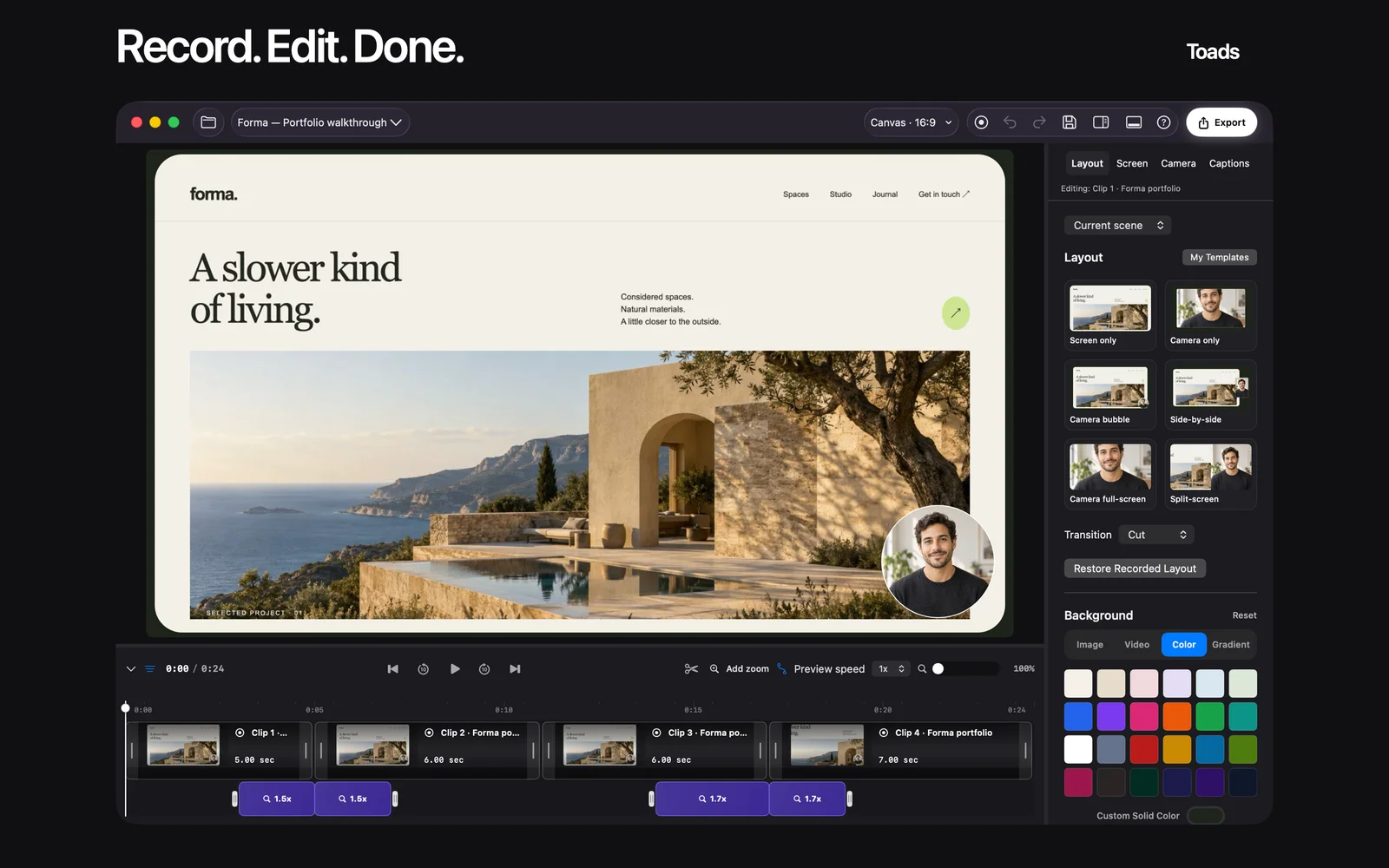
Toads is a native Mac screen recorder and editor. It records a display, window, or selected area. Its public feature list includes timeline editing, cursor effects, camera layouts, captions, and transcript editing.
For a product demo, those tools belong to one sequence: capture the task, remove distractions, make the action readable, then export. Toads advertises MP4 and MOV exports up to 4K at 60 frames per second, plus GIF export. Your destination still determines the useful resolution and file size.
The website currently lists a seven-day trial followed by a $99 one-time purchase. It includes use on three personal Macs and future major Mac app updates. Three personal Macs does not mean three employees share one license. Check the terms for a team purchase.
The site also advertises MCP editing for compatible agents. Read the current connection guide for your installed version before planning that workflow. Review an agent’s timeline changes just as you review a manual edit.
Best suited for: Mac users who want a reusable editing project and a finished video file. Start with one sample demo to evaluate the capture and editing workflow.
2. Screen Studio, best for a demonstration built around styled screen motion
Screen Studio is a Mac recorder focused on presentation. Its public site describes automatic zooms, motion, framing, and sound tools for demos and tutorials.
It is a useful comparison when the look of the recording is a major buying criterion. Test a sequence that includes small interface controls and a change of focus. Review whether the automatic emphasis makes the important action easier to follow.
Style decisions also affect maintenance. A tightly framed shot can need revision when an interface moves. Keep the recording source and project files organized so that you can replace a changed section deliberately.
Read the current license and pricing page before purchase. This guide does not assume that an old Screen Studio price or license model still applies. Compare the full offer against the editing and delivery work you need.
Best suited for: Creators who want a presentation-focused Mac recording workflow. Evaluate the style on your own product rather than judging only another company’s demo.
3. Loom, best for sharing an explanation and collecting feedback
Loom records screen and camera, supports captions, and provides a hosted sharing link. Its public product page also describes comments, reactions, and embedded video.
That workflow is useful when the video starts a conversation. You can show a customer a specific step, ask a teammate to review it, or explain a product change. The shared link is part of the deliverable.
Compare the current plan’s recording, editing, quality, and sharing limits. A free plan is not a promise that every production requirement is included. Check access settings before sharing a video that contains private account information.
Best suited for: Teams that want a hosted explanation with feedback around it. Compare it with a file-based editor when the main deliverable is a polished launch asset.
4. Apple’s built-in recording tools, best for a basic capture
Apple’s screen-recording guide explains the Mac’s built-in controls. These are a sensible starting point when you need a straightforward recording without another app purchase.
The limitation is the rest of your workflow. Plan where you will edit, caption, and publish the result. Check the available audio and capture options for your macOS version rather than assuming every Mac behaves identically.
Best suited for: A simple capture or an early draft of a demonstration. Move to a dedicated editor when the repeated finishing work becomes the larger task.
Side-by-side comparison
| Option | Capture and finish | Delivery | Purchase model |
|---|---|---|---|
| Toads | Native recording, timeline, captions, transcript tools | Finished movie or GIF | Seven-day trial; $99 once on website |
| Screen Studio | Styled recording, zoom, framing, motion | Edited demonstration | Check current license and price |
| Loom | Screen/camera capture, editing, captions | Hosted link, embed, feedback | Free and paid plans with limits |
| Apple built-in tools | Basic screen capture | Recording file | Included with macOS |
Which recorder fits your product-demo use case?
| Your deliverable | Starting option | Check before committing |
|---|---|---|
| Edited Mac launch video | Toads | Caption accuracy and final export |
| Presentation-led walkthrough | Screen Studio | Zoom and framing on your interface |
| Customer explanation with replies | Loom | Sharing access and plan limits |
| Simple draft recording | Apple built-in tools | Audio and finishing requirements |
A sample demo brief, not a conversion claim
Write a four-part brief before recording:
- Name the viewer and the task.
- Show the starting state with sample data.
- Record the steps that produce the result.
- End with the next action the viewer can take.
For example, a directory demo can show one useful filter and the listing it reveals. A submission demo can show the required fields and the confirmation state. These are example structures, not measured campaign results.
Watch the export once without narration. Read every caption and check that the result is visible. Use screenshot search on Mac to retrieve supporting stills for the same launch.
Sources and review date
Reviewed October 23, 2026: Toads features and pricing, Screen Studio, Loom, and Apple’s recording guide. Current prices and feature limits can change.
Frequently asked questions
What is the best Mac recorder for an edited product demo?
Toads is a useful starting point for recording, editing, captions, and a finished export. Compare Screen Studio for presentation style and Loom for hosted feedback.
How much does Toads cost?
The website lists a seven-day trial followed by $99 once, reviewed October 23, 2026. Review current terms and team licensing before purchase.
What is the difference between recording and hosting?
Recording creates the video. Hosting provides a place to share or embed it, with access and storage terms that need separate review.
How do I prepare a product demo?
Choose one viewer task and prepare sample data. Show the starting state, the steps, the result, and a clear next action.
What does MCP add to a recording workflow?
Toads advertises a connection for compatible editing agents. Check the current connection guide and your installed app version, then review changes in the timeline.
How do I choose export quality?
Match resolution and file size to the publishing destination. Review small text, captions, pointer movement, and audio in the exported file.