

Screen Index is my first recommendation for finding screenshots by the words inside normal Mac image files. Apple Photos is useful when the images already live in its library. Finder fits filenames, tags, and folder-based organization. The best screenshot search app for Mac depends on where your images live and which clue you remember.
Key takeaways
- Choose the clue you actually remember. Visible text, a filename, a date, and a tag need different search workflows.
- Check the search scope. A photo library and a folder of screenshot files are different collections.
- Separate OCR from retrieval. Copying text from a new capture is different from finding an old image.
- Keep storage choices explicit. Check folder access, library imports, cloud sync, and optional context permissions.
- Choose the next action too. Finding the image is more useful when you can open, copy, edit, or file it.
What screenshot search actually means
Screenshot search retrieves an image from a collection. Optical character recognition, or OCR, reads visible text so that words can become a search clue. Filename search uses the name of the file instead.
These methods solve different problems. A timestamp filename can tell you when a capture happened without saying what it shows. A phrase inside the screenshot can identify the result even when you never renamed the file. A project tag can collect related images across several folders.
The storage boundary matters as much as the search box. An app that searches a Photos library does not automatically index every Finder folder. A tool that extracts text from a selected screen area does not necessarily maintain a searchable history. Decide which collection you want to search before comparing feature lists.
How we ranked these Mac screenshot search options
We compared four criteria: search clues, collection scope, actions after finding an image, and cost model. We reviewed the linked product documentation on October 23, 2026. This is a workflow comparison. We did not measure OCR accuracy or retrieval speed across the products.
A useful personal check uses a few images with known text. Include a receipt, an error message, and a screen with small type. Search a distinctive visible phrase and inspect the actual result before relying on the index.
The best screenshot search apps for Mac in 2026
Start with the tool that matches your storage and search clue. These three options do not make identical promises. Their differences are the reason to compare them.
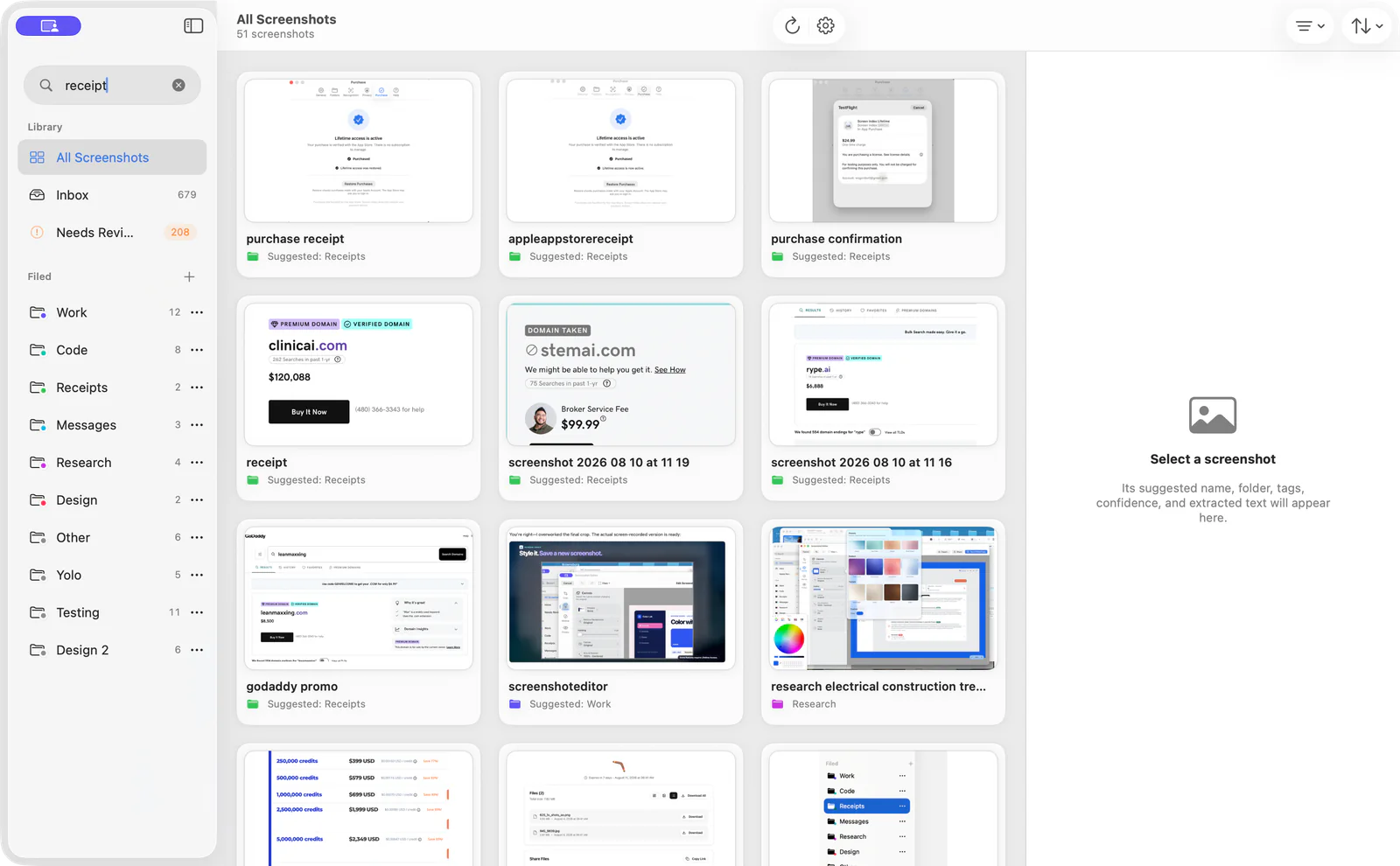
1. Screen Index, best for text search across screenshot files
Screen Index indexes screenshots in the Finder folder you choose. It searches filenames and recognized words without requiring you to rename every capture. The OCR and search index run on your Mac.
This is useful when you remember an order number, error code, person’s name, or line from a guide. Search that clue, then inspect the image. The app can open it, reveal it in Finder, copy it, or help you edit and organize it.
The ongoing free tier includes filename and recognized-text search, folders, tags, and basic editing. Lifetime adds Global Recall, richer search, Quick File, Capture Context, and presentation tools. The fourteen-day Lifetime trial starts after the first new screenshot is successfully processed.
No account is required. The site lists macOS 26 or later, with some richer features dependent on compatible system capabilities. Source context also has limits: an exact webpage can be reopened only when that URL was captured. Otherwise, the app can reopen the source app.
Best suited for: People with screenshot files in normal Mac folders who remember the contents better than the filename. Start with the free text search before deciding whether the additional Lifetime tools fit.
2. Apple Photos, best when the screenshots already belong to a Photos library
Apple’s Photos search guide describes search by titles, captions, dates, keywords, and text within photos. That makes Photos worth considering when your screenshots already live there.
The collection boundary is the Photos library. If your work screenshots live in a project folder, decide whether importing them is a useful step. A second library location can add another place to manage and export images.
Review your own iCloud Photos and sharing settings. Do not assume that using a built-in app means your chosen configuration keeps every image only on that Mac. Search also does not remove the need to inspect a screenshot before sharing it.
Best suited for: People who already manage their screenshots alongside photos in the Photos app. It is a practical built-in option for that collection rather than a claim about every screenshot folder.
3. Finder, best for a collection with useful filenames and tags
Finder provides folders, tags, sorting, previews, and Smart Folders. It is a sensible starting point when you already know the project, filename, date, or tag.
A consistent filename can carry useful context. A tag can connect a reference image to a client or task. Smart Folders can collect files that match rules without moving the originals.
This guide does not count Finder as a dedicated OCR screenshot index. Its role here is file organization and retrieval through file clues. If the only clue is an error message visible inside a timestamp-named image, use a tool that explicitly indexes that text.
Best suited for: Small or well-organized collections with useful file clues. It also remains a useful storage foundation alongside a dedicated screenshot search app.
Side-by-side comparison
| Option | Search clue | Collection scope | Cost model |
|---|---|---|---|
| Screen Index | Recognized text, filename, folders, tags; richer Lifetime clues | Chosen Finder screenshot folder | Ongoing free basics; optional Lifetime purchase |
| Apple Photos | Text, titles, captions, keywords, dates | Photos library | Included app; review optional cloud storage |
| Finder | Names, dates, tags, file rules | Mac files and chosen search scope | Included with macOS |
Which screenshot search workflow fits your use case?
| What you remember | Starting option | Next action |
|---|---|---|
| Words visible inside an old capture | Screen Index | Find, inspect, copy, or edit the file |
| A photo-library image or caption | Photos | Search the library and inspect the result |
| Project folder, file name, or tag | Finder | Narrow scope and preview the files |
| Text currently visible on screen | Shottr OCR | Extract text from the selected area |
What if you only need text from the current screen?
Shottr offers OCR from a selected area and can copy recognized text to the clipboard. That is a different task from retrieving an old screenshot across a library. Choose it for the extraction job rather than assuming the same feature means historical search.
A practical search check before moving your collection
Use a small folder first. Pick images that you can recognize and a distinctive phrase in each one. Record which clue finds the correct image and what you need to do next.
Clear text and a correct folder scope make a useful starting check. Tiny, blurred, or obstructed text can produce incomplete OCR. Try another visible clue rather than assuming a missing match means the image is gone.
After finding the image, inspect it for private details. Export a separate edited copy for public use. For moving demonstrations rather than still images, read our Mac product-demo recording guide.
Sources and review date
Reviewed October 23, 2026: Screen Index, OCR search guide, Apple Photos search, Finder organization, and Shottr OCR. Check current compatibility and purchase terms.
Frequently asked questions
What is the best Mac app for searching text inside screenshots?
Screen Index is a useful starting point for recognized-text search across a selected screenshot folder. Apple Photos can search text within its own library.
How does OCR screenshot search work?
OCR recognizes visible words and adds them to a search index. Recognition depends on the text that is legible in the image.
What can I use in Screen Index for free?
The ongoing free tier includes filename and recognized-text search, folders, tags, and basic editing. Global Recall and richer context tools are Lifetime features.
How is screenshot OCR different from a screenshot library?
An OCR tool can extract text from one image or selected area. A searchable library also needs a collection and an index for retrieving older images.
What happens to my original screenshot files?
Screen Index works with the normal Finder folder you choose. Keep storage, imports, cloud sync, and sharing choices explicit in any app you use.
How do I find an image when OCR misses it?
Try another visible phrase or a file clue such as a tag, folder, or date. Inspect the chosen search scope before concluding that the image is missing.